
See your submissions
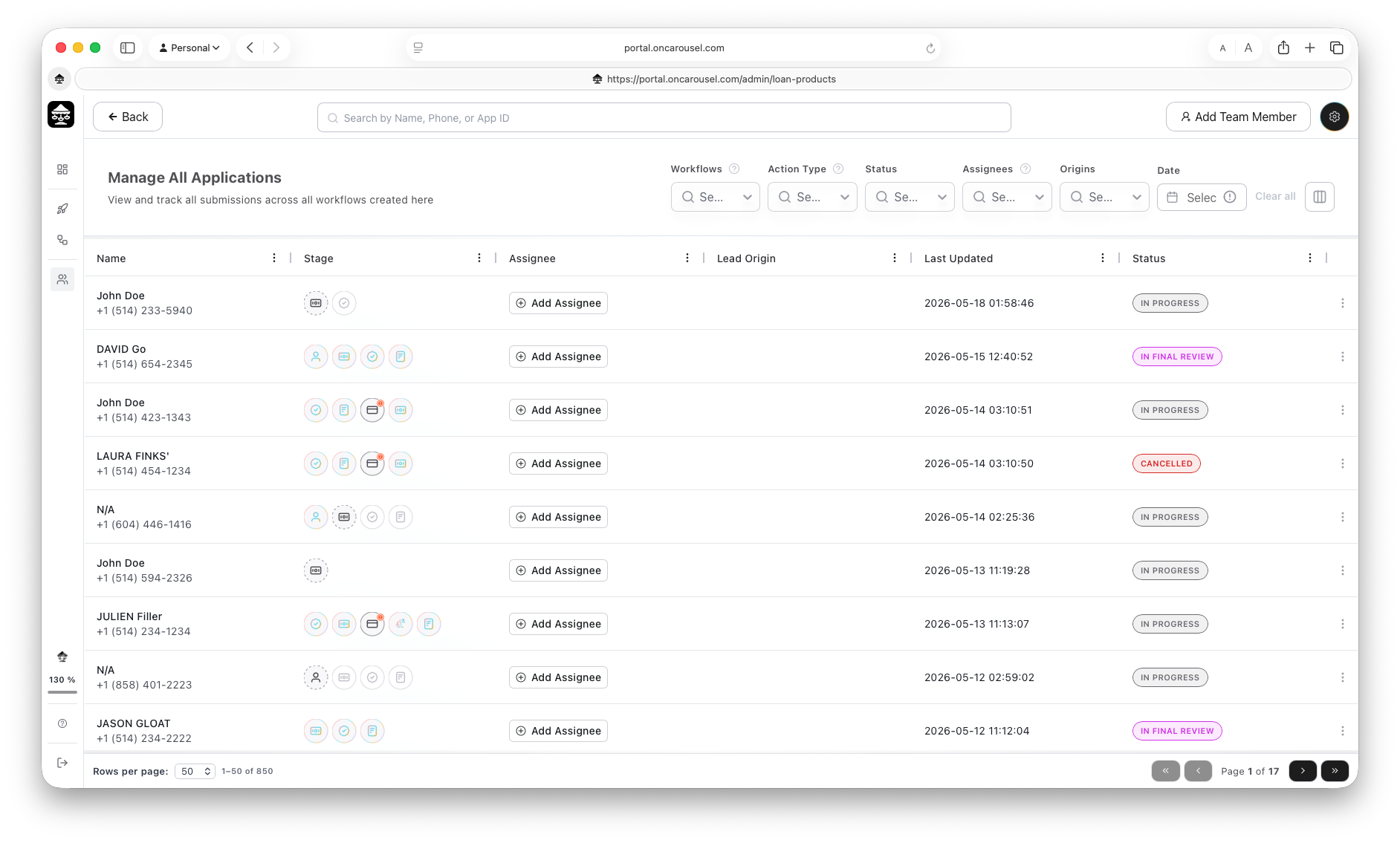
Open Applications from the rail to reach Manage All Applications — your team's shared queue. Every submission across every workflow lands here, newest activity first.
Reading a row
Name & phone
The applicant and their number — the quickest way to find or call them.
Stage
The cluster of dots shows how far they've moved through the workflow's steps (§09).
Assignee
The teammate responsible. Unassigned rows show Add Assignee.
Lead origin
Where the link came from — a rep, a listing, a property — so you know the source.
Last updated
When the applicant last made progress — handy for spotting stalled files.
Status
The overall state: in progress, in final review, completed, or cancelled (§09).
Finding the right ones
Use Search (top bar) to jump to someone by name, phone, or App ID. Use the Filters button to narrow by workflow, status, assignee, origin, or date, and the column button to show or hide columns. When there's nothing to show yet, the table simply reads No Rows To Show — that's normal for a brand-new workspace.
Tip: the footer ("1–50 of …") shows the true size of your queue. Filter first, then page — faster than scrolling.